How to connect airpods to laptop
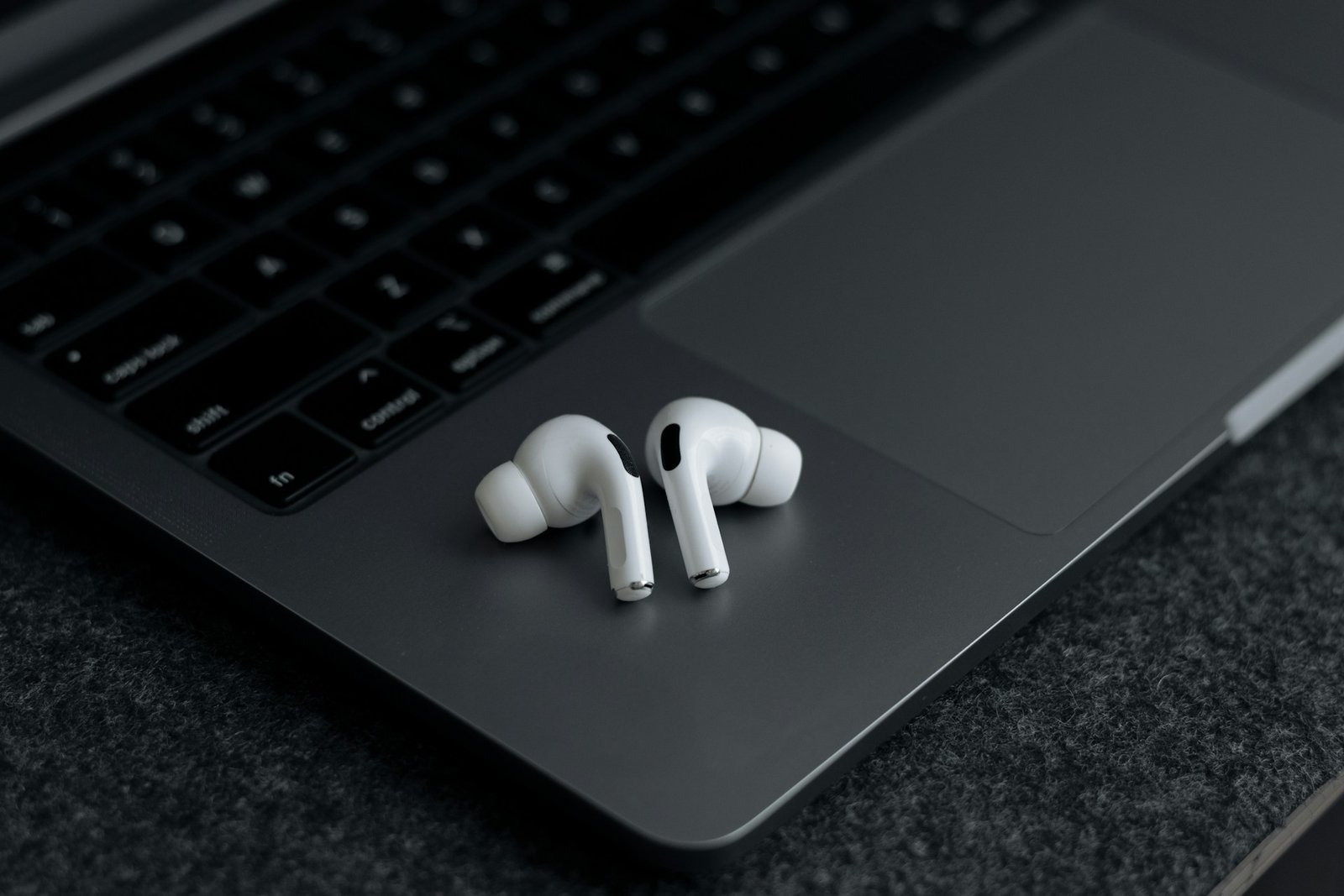
While primarily designed for Apple’s ecosystem, AirPods can also be easily paired with laptops running other operating systems like Windows.
Connecting AirPods to MacBook
To use your AirPods with your Macbook, make sure your Mac’s software is new enough for your AirPods model:
- AirPods 2: Your Mac needs macOS Mojave version 10.14.4 or newer.
- AirPods 3: Your Mac needs macOS Monterey or newer.
- AirPods Pro 1: Your Mac needs macOS Catalina version 10.15.1 or newer.
- AirPods Pro 2 and AirPods 4: Your Mac needs the very latest version of macOS.
If you’ve already connected your AirPods to your iPhone and you’re signed into the same Apple account on your Mac, your AirPods might connect to your Mac automatically. Just put them in your ears!
If they don’t connect automatically, here’s how to connect them manually:
- Click on the Control Center icon at the top right of your Mac’s screen (it looks like two switches).
- Click on Bluetooth.
- Find your AirPods in the list that appears and click on them to connect.
Here’s how to manually connect your AirPods to your Mac if they don’t show up in Control Center:
- On your Mac, click the Apple menu at the top left of your screen and choose System Settings.
- Click on Bluetooth in the System Settings window.
- Make sure the Bluetooth switch is turned on.
- Put both of your AirPods back in their charging case and open the lid.
- Now, do one of these things depending on your AirPods:
- For AirPods 4: double-tap the front of the case twice until light on the case starts flashing white.
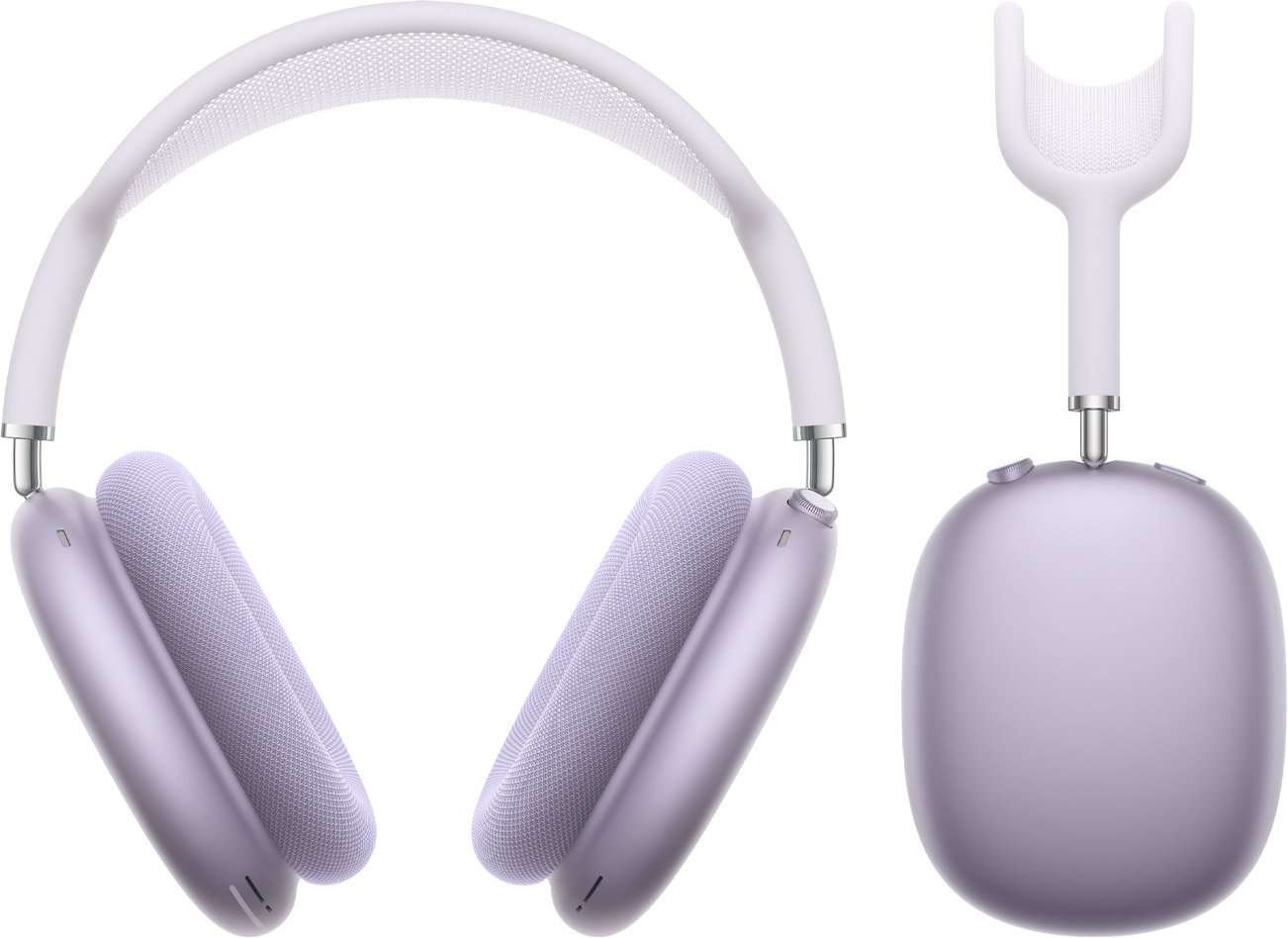
- For AirPods Max: On the top of the right earcup, you’ll find a noise control button. Press and hold this button until the status light starts flashing white.
- For all other AirPods: Press and hold the small button on the back of the case until that light starts flashing white.
- On your Mac, in the Bluetooth settings, you should see your AirPods listed under Nearby Devices.
- Click the Connect button next to your AirPods in the Nearby Devices list.
Connecting AirPods to a Windows Laptop
Here’s how to connect your AirPods to a Windows laptop:
- On your Windows laptop, go to the Bluetooth settings and make sure Bluetooth is turned on.
- Get your AirPods ready to pair:
- For AirPods 4: Quickly tap the front of the charging case twice until the status light starts flashing white.
- For AirPods Max: On the top of the right earcup, you’ll find a noise control button. Press and hold this button until the status light starts flashing white.
- For all other AirPods: Press and hold the small button on the back of the charging case until the status light starts flashing white.
- On your Windows computer, click Add a new Bluetooth device.
- Wait for your AirPods to appear in the list of devices. When you see them, click on them to select and connect.
READ MORE FROM BEST PRODUCTS
Galaxy Watch Ultra 2 Review: Specs & Features
Samsung’s premium smartwatch lineup gets a substantial hardware and performance upgrade with the Galaxy Watch…
Galaxy Z Fold8 Ultra vs Galaxy Z Fold8
Samsung expanded its foldable smartphone lineup by introducing two distinct devices: the Galaxy Z Fold8…
Samsung Announces Galaxy Z Fold8 Ultra, Z Fold8, and Z Flip8 at July 2026 Unpacked Event
At its highly anticipated Galaxy Unpacked event in July 2026, Samsung Electronics officially launced its…
LG StanbyME 2 Max: Portable 4K Screen
LG Electronics has expanded its lifestyle screen lineup with the introduction of the LG StanbyME…
how to fix laptop overheating
Overheating is a common yet critical issue that can significantly degrade a laptop’s performance. Laptops…
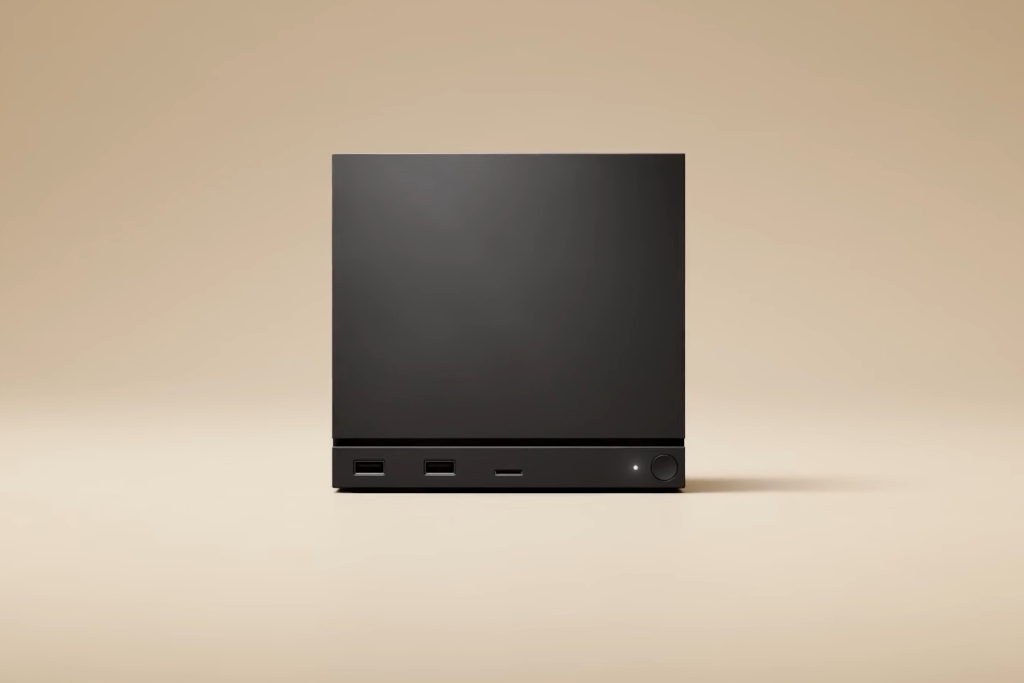
Valve launches Steam Machine gaming PC
Valve has officially announced the launch details, pricing, and reservation plans for its new Steam…
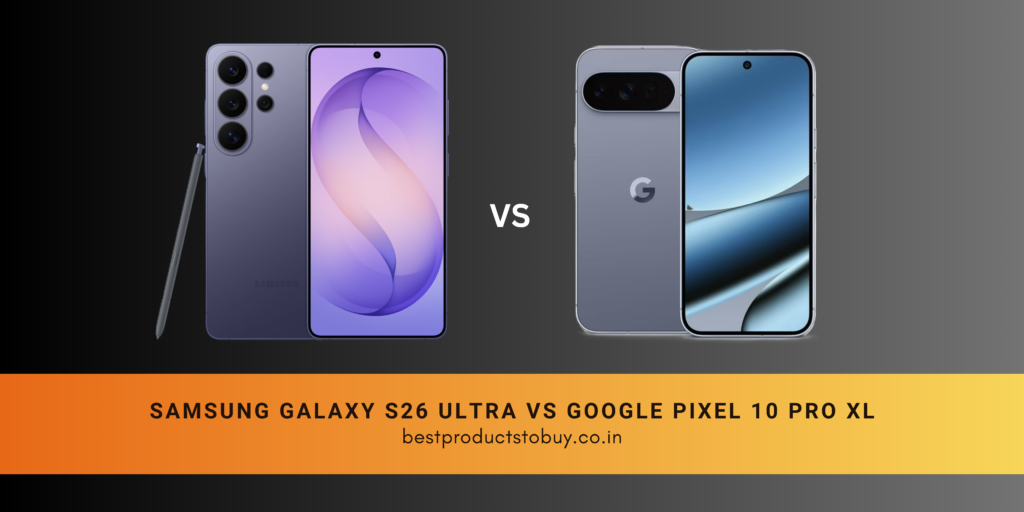
samsung galaxy s26 ultra vs google pixel 10 pro xl
Both the Samsung Galaxy S26 Ultra and the Google Pixel 10 Pro XL are high-end…
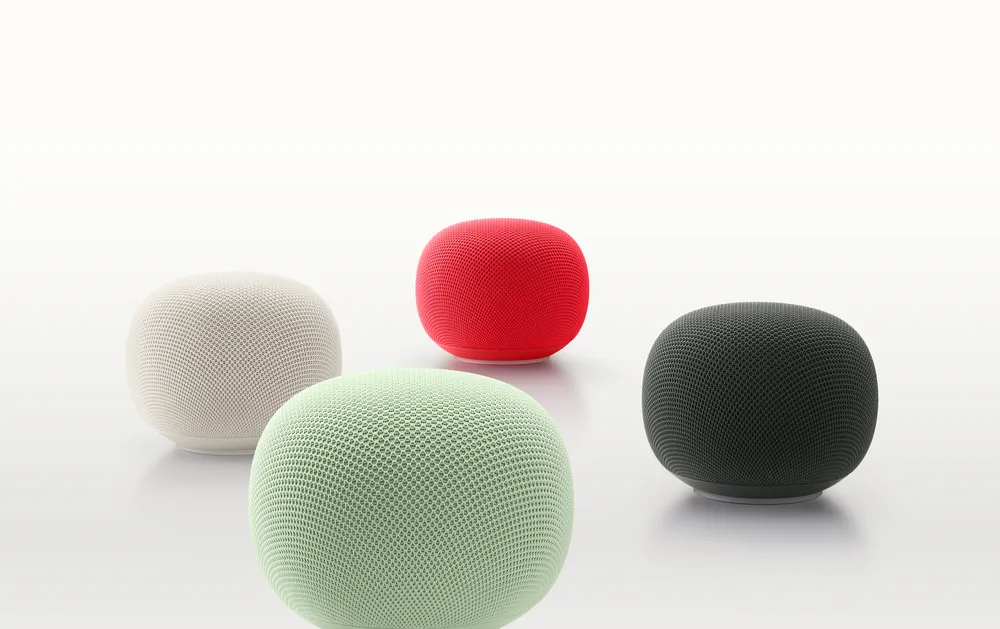
What You Need to Know About the New Google Home Speaker
Google is launching a new smart speaker called the Google Home Speaker, and it is…
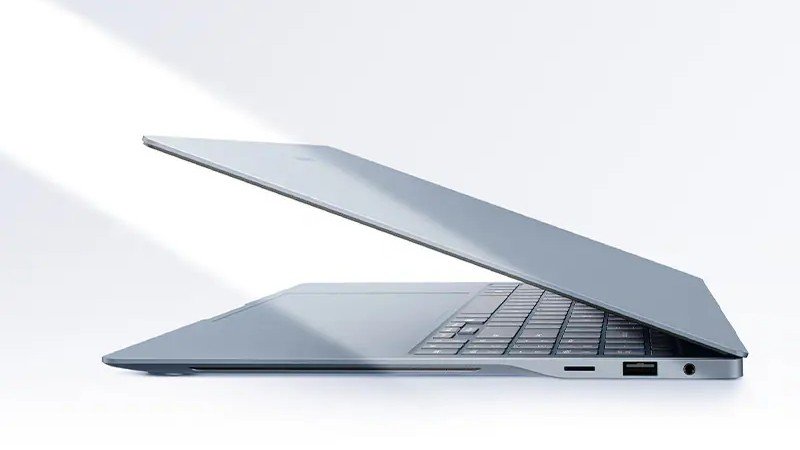
Galaxy Book6 Edge Now Available: What to Know
Samsung has released its new laptop, the Galaxy Book6 Edge, in the United States. It…
Samsung Galaxy Z Fold 8: Release Date, Leaks, Features
Recent leaks give us a clear picture of what to expect from Samsung’s next big…
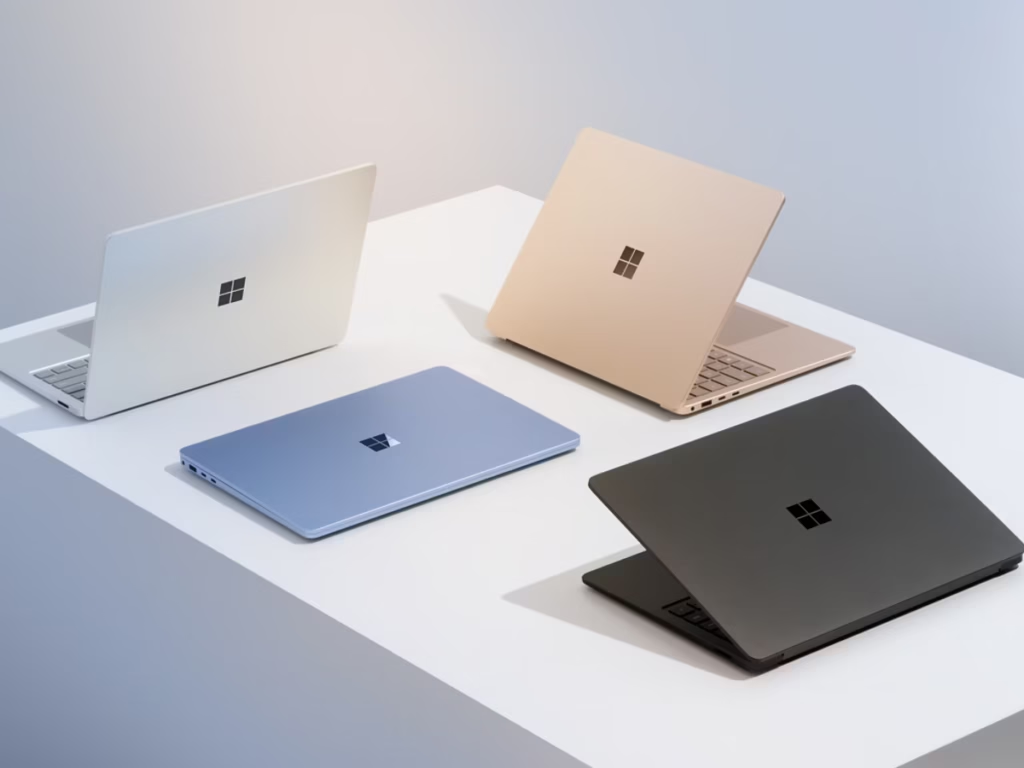
Surface Laptop 5: Specs and Features
Microsoft Surface Laptop 5 focuses on reliable everyday performance and clean aesthetics. The physical build…
How to connect airpods 4 to laptop
Connecting your AirPods 4 to a laptop is a pretty straightforward process, whether you’re using…
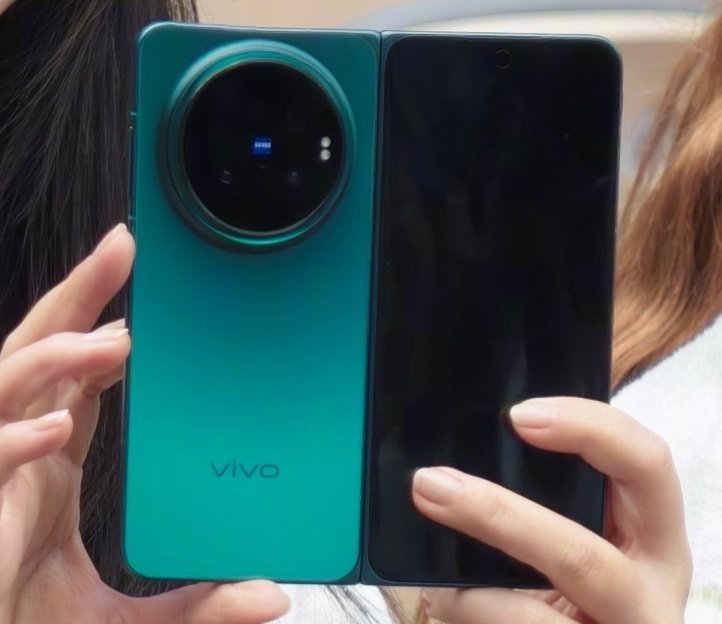
Vivo X Fold 6 Revealed
The latest leaks and official teasers for the Vivo X Fold 6 give a pretty…
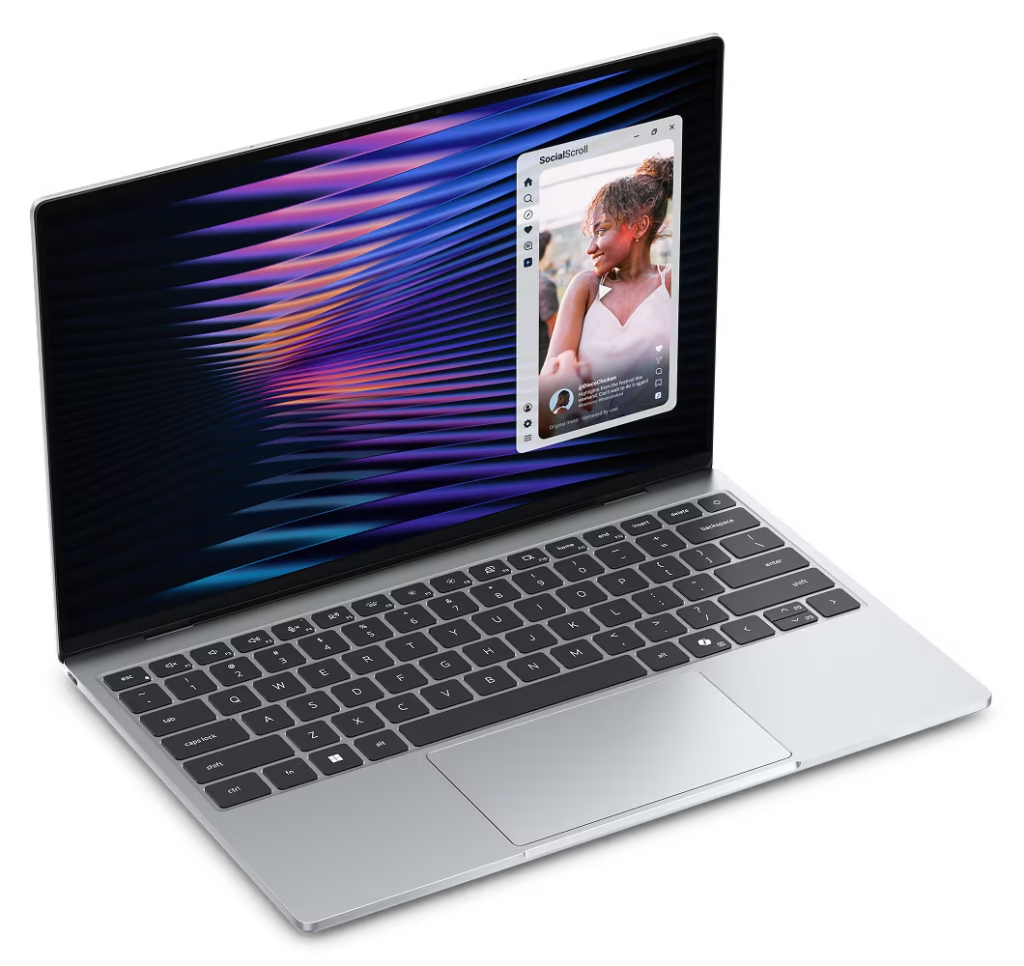
New Dell XPS 13
For a long time, the unwritten rule of buying a laptop was that a lower…
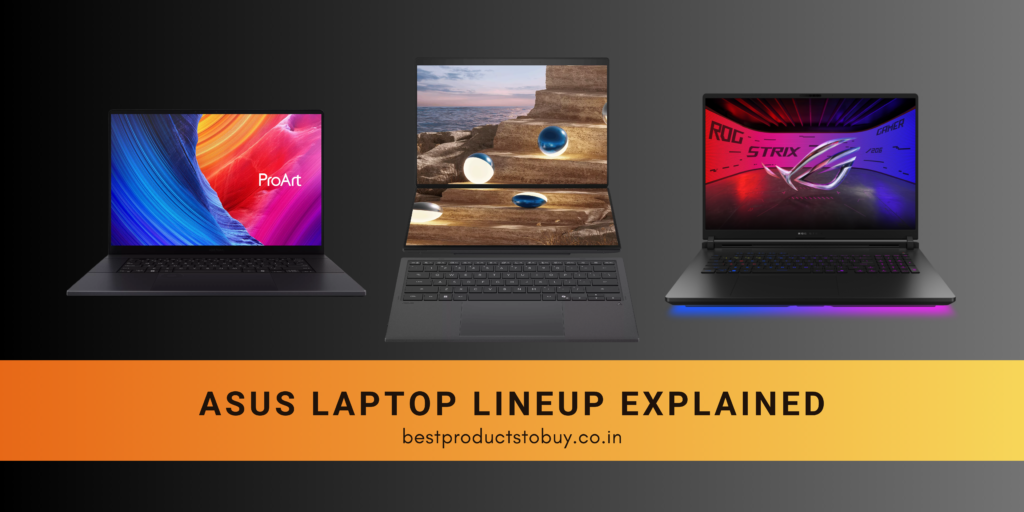
ASUS Laptop Lineup Explained
The brand ASUS makes everything from budget-friendly devices to high-end machines. Because they organize their…