How to screenshot on laptop
Taking a screenshot on your laptop is a handy skill for capturing and sharing what’s on your screen. While the exact steps might vary slightly depending on your laptop’s brand and operating system, the general idea is the same.
For Windows Laptops
Windows has several built-in ways to take screenshots.
1. Windows Key + Print Screen: This is a quickest way to save a full-screen screenshot directly as a file. Press the Windows key (the one with the Windows logo) and the PrtScn/ PrtScr key simultaneously. Your screen will briefly dim, indicating that the screenshot has been taken. The image is automatically saved as a PNG file in a “Screenshots” folder within your “Pictures” library.
2. Windows also has a built-in tool that gives you more options for capturing screenshots:
- Open the tool: You can find it by typing “Snipping Tool” or “Snip & Sketch” in the Windows search bar (usually at the bottom left of your screen) and clicking on it. Snip & Sketch is the newer version of the Snipping Tool. You can open these tools using the shortcut Windows key + Shift + S.
- Choose your snip type: Once open, you’ll see options like:
- Rectangular: Drag your mouse cursor around the area you want to capture.
- Free-form: Draw any shape around the area you want to capture.
- Window: Select a specific window to capture.
- Full-screen: Captures the entire screen.
The screenshot is automatically saved as a PNG file in a “Screenshots” folder within your “Pictures” library. The screenshot will be copied to your clipboard, and a notification will pop up. Click the notification to open it in the “Snipping Tool” or “Snip & Sketch” app where you can edit and save it.
For macOS Laptops (MacBooks)
Taking screenshots on a MacBook is also quite easy, using keyboard shortcuts:
- Capture the entire screen: Press Shift + Command (⌘) + 3 all at the same time. The screenshot will be saved as a file on your desktop.
- Capture a specific portion of the screen: Press Shift + Command (⌘) + 4. Your cursor will turn into a crosshair. Click and drag to select the area you want to capture, then release the mouse or trackpad button. The screenshot will be saved as a file on your desktop.
- Capture a specific window: Press Shift + Command (⌘) + 4, then press the Space bar. The cursor will change to a camera icon. Now, just click on the window or menu you want to screenshot.
- If you don’t want the shadow around the window to appear in your screenshot, hold down the Option key while you click the window.
For Chromebooks
To take a screenshot on your Chromebook, follow these simple steps:
1. Using the Screen Capture tool: Chromebooks also have a built-in Screen Capture tool.
- Open Screen Capture: Go to your Quick Settings, then Select “Screen Capture.” Make sure the content you want to capture is visible on your screen.
- Choose your capture type: In the Screen Capture tool, decide if you want to capture: A selected portion of your screen, your entire screen or just one specific window.
- Take the screenshot: After making your selection, click “Capture” on the screen.
- Find your screenshot: Once taken, your screenshot will appear in “Tote” on your shelf. It will also be automatically copied to your Clipboard, so you can easily paste it elsewhere.
2. Using keyboard: You can take a screenshot on your Chromebook in a few ways, depending on your keyboard.
- With a Screenshot Key: If your Chromebook has a dedicated Screenshot key, simply press it.
- Without a Screenshot Key: If your Chromebook doesn’t have a dedicated key, press Shift + Ctrl + Show windows.
- With an External Keyboard: For external keyboards that lack a Show windows key, use Ctrl + Shift + F5.
3. Screenshot Options: After pressing the appropriate key combination, a menu will appear at the bottom of your screen. From this menu, select the Screenshot icon and then choose one of the following:
- Full screen: Captures everything on your screen.
- Partial: Allows you to select a specific area to capture.
- Window: Takes a screenshot of an open application window.
All your screenshots will automatically be saved to your “Downloads” folder.
READ MORE FROM BEST PRODUCTS
Galaxy Watch Ultra 2 Review: Specs & Features
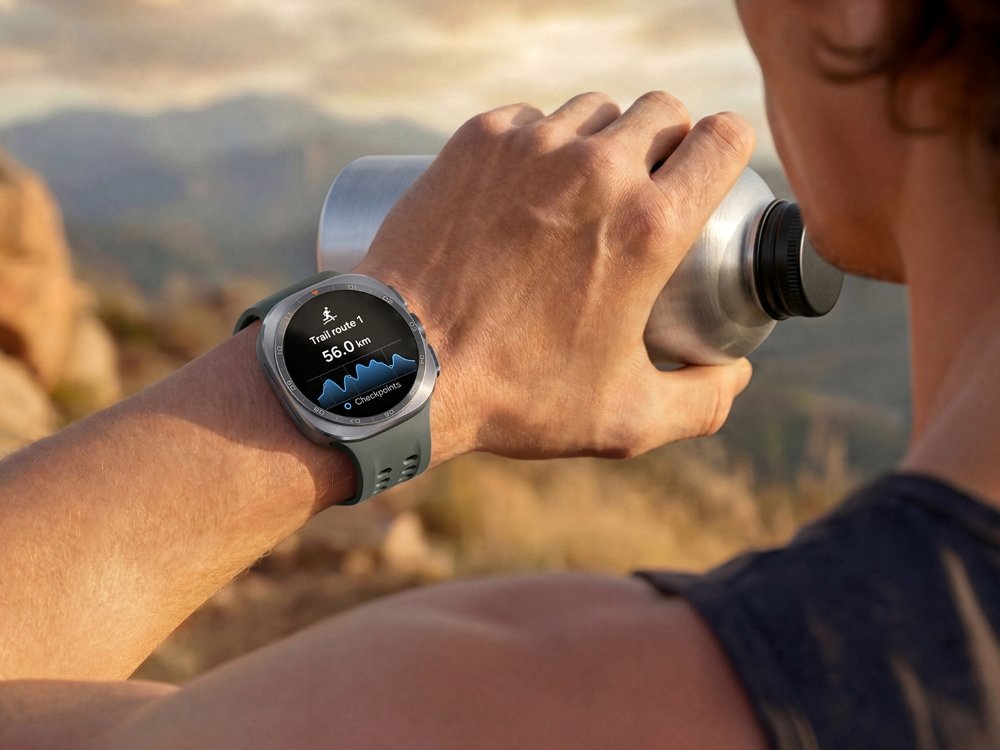
Home » Electronics » Galaxy Watch Ultra 2 Review: Specs & Features Samsung’s premium smartwatch lineup gets a substantial hardware and performance upgrade with the Galaxy Watch Ultra2. It is positioned as a rugged, high-performance wearable for athletes and outdoor enthusiasts, and users seeking long-term health monitoring. The updated smartwatch delivers direct upgrades in processing…
Galaxy Z Fold8 Ultra vs Galaxy Z Fold8
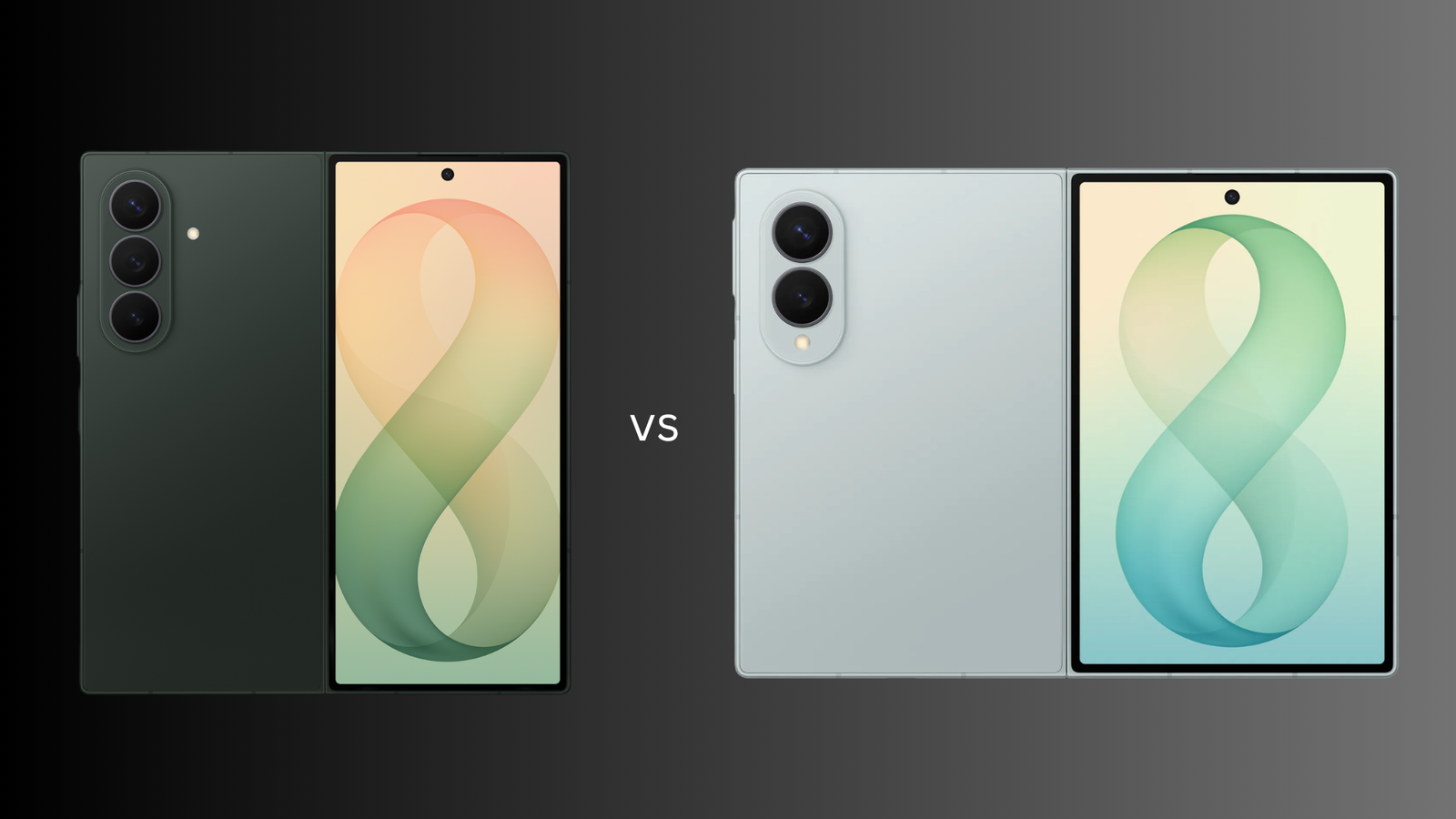
Home » Electronics » Galaxy Z Fold8 Ultra vs Galaxy Z Fold8 Samsung expanded its foldable smartphone lineup by introducing two distinct devices: the Galaxy Z Fold8 Ultra and the Galaxy Z Fold8. While both devices run on identical processor and software, they serve different ergonomic and functional requirements. Form Factor and Display Design The…
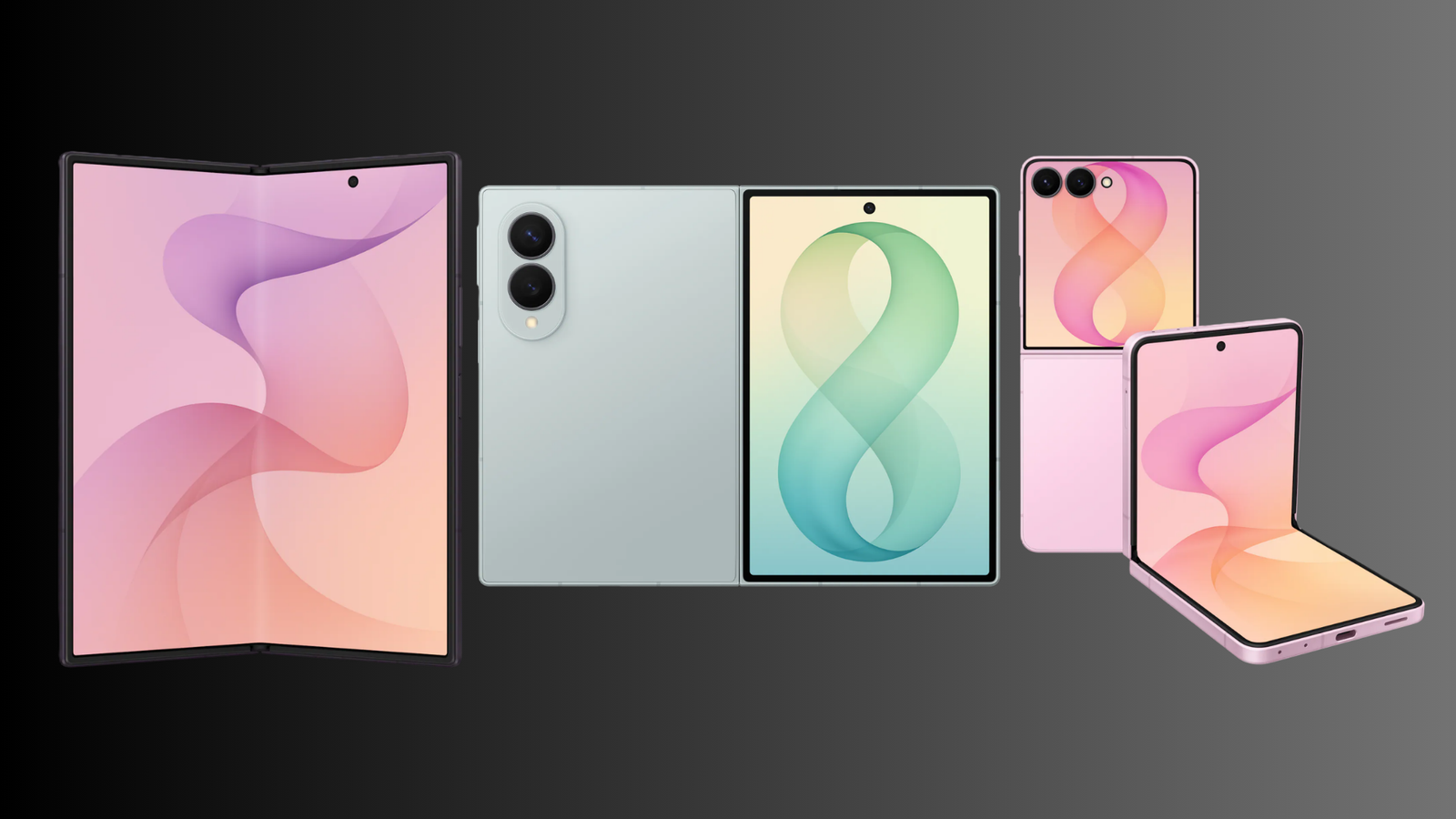
Samsung Announces Galaxy Z Fold8 Ultra, Z Fold8, and Z Flip8 at July 2026 Unpacked Event
Home » Electronics » Samsung Announces Galaxy Z Fold8 Ultra, Z Fold8, and Z Flip8 at July 2026 Unpacked Event At its highly anticipated Galaxy Unpacked event in July 2026, Samsung Electronics officially launced its flagship trio: the Galaxy Z Fold8 Ultra, Galaxy Z Fold8, and Galaxy Z Flip8. Alongside these handsets, the company introduced…

LG StanbyME 2 Max: Portable 4K Screen
Home » Electronics » LG StanbyME 2 Max: Portable 4K Screen LG Electronics has expanded its lifestyle screen lineup with the introduction of the LG StanbyME 2 Max. Building on the foundation of its predecessor, this new release introduces a larger display, higher resolution, portable smart screen and smarter AI processing. Upgraded Features The most…
how to fix laptop overheating
Home » Electronics » how to fix laptop overheating Overheating is a common yet critical issue that can significantly degrade a laptop’s performance. Laptops cram a lot of powerful hardware into a very tiny space. When things get too hot, your laptop will slow down to protect itself. Because high-performance hardware is enclosed in a…
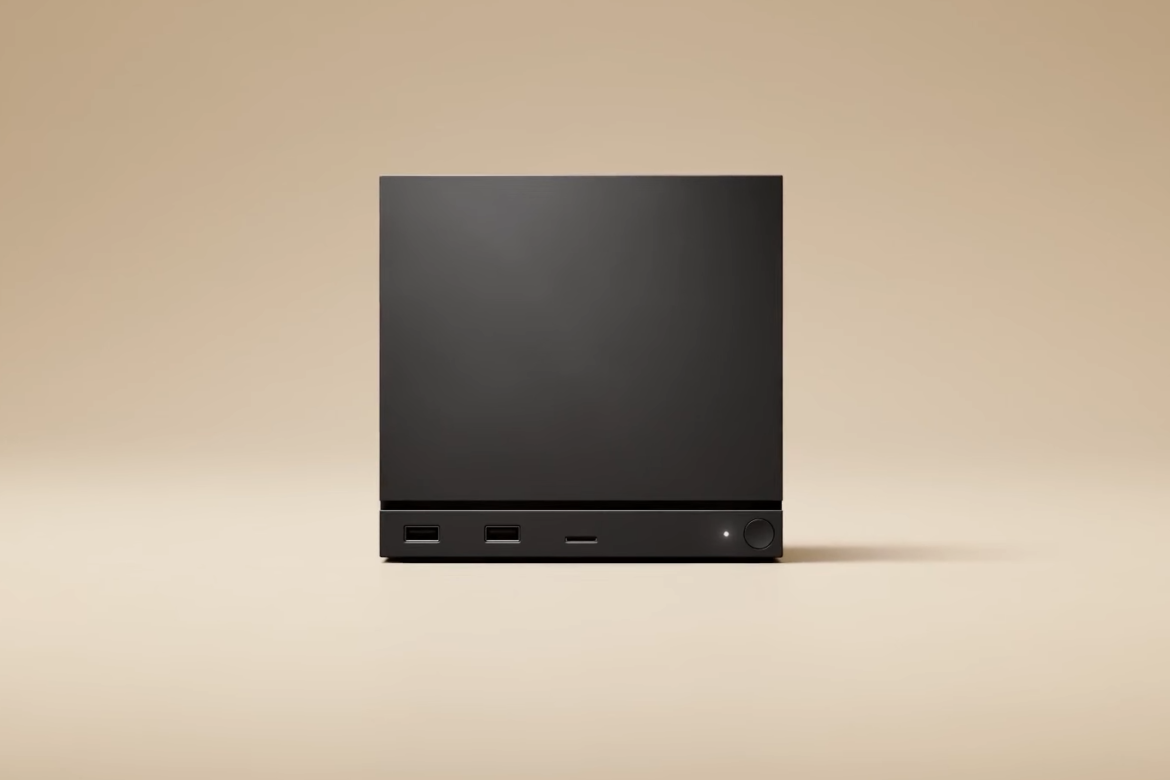
Valve launches Steam Machine gaming PC
Home » Electronics » Valve launches Steam Machine gaming PC Valve has officially announced the launch details, pricing, and reservation plans for its new Steam Machine. Designed as a compact, cube-shaped gaming PC, the system brings your entire Steam library directly to your TV. It runs on Linux-based SteamOS, giving it console-like ease of use…
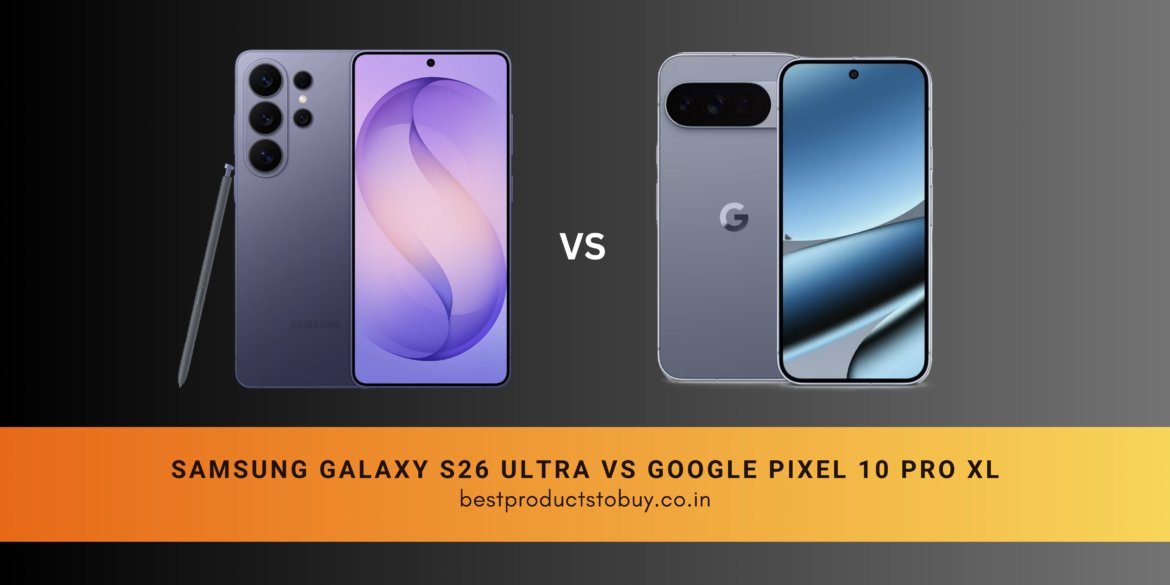
samsung galaxy s26 ultra vs google pixel 10 pro xl
Home » Electronics » samsung galaxy s26 ultra vs google pixel 10 pro xl Both the Samsung Galaxy S26 Ultra and the Google Pixel 10 Pro XL are high-end Android phones. While both focus heavily on smart software and high-quality cameras, they handle display technology, processing power, and zoom photography quite differently. Comparison samsung galaxy…
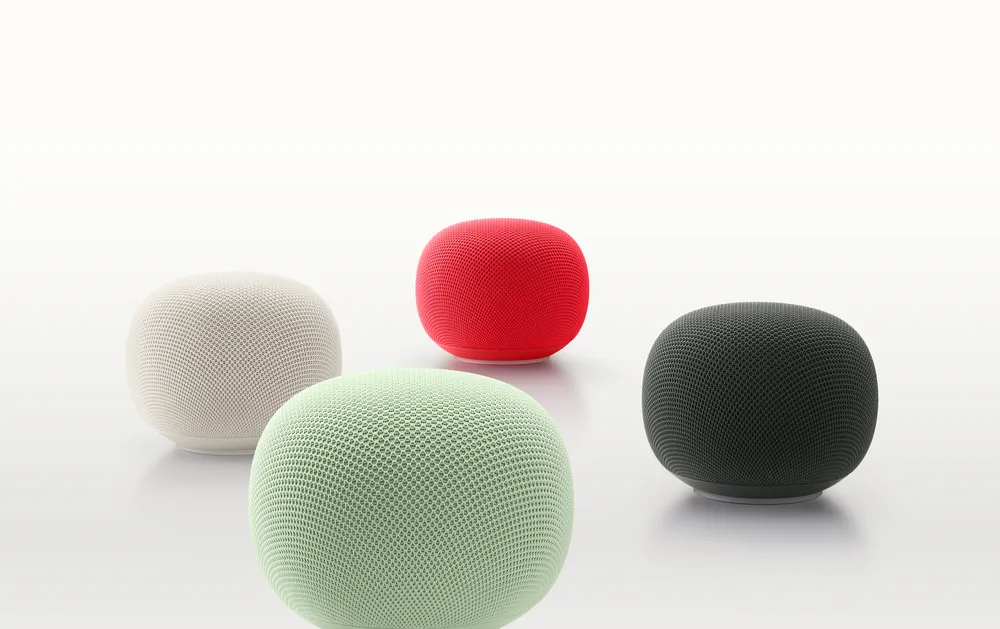
What You Need to Know About the New Google Home Speaker
Home » Electronics » What You Need to Know About the New Google Home Speaker Google is launching a new smart speaker called the Google Home Speaker, and it is the first audio device built specifically to run its Gemini AI system. It is available for pre-order at $99.99 and will be in stores on…
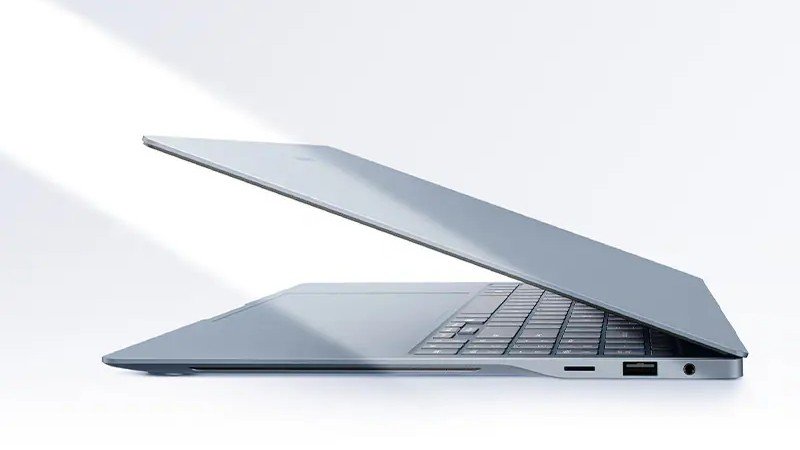
Galaxy Book6 Edge Now Available: What to Know
Home » Electronics » Galaxy Book6 Edge Now Available: What to Know Samsung has released its new laptop, the Galaxy Book6 Edge, in the United States. It is slim, lightweight designed with a strong focus on processing AI tasks directly on the device. Features Price and Availability The Galaxy Book6 Edge is available on Samsung’s…
Samsung Galaxy Z Fold 8: Release Date, Leaks, Features
Home » Electronics » Samsung Galaxy Z Fold 8: Release Date, Leaks, Features Recent leaks give us a clear picture of what to expect from Samsung’s next big foldable phones, likely launching in late July 2026. Interestingly, the reports show that Samsung is planning to release two different versions this time: a main model Samsung…